
That is a normal prompt from Microsoft OneNote and will appear if it is the first time you’ll be using it. When you see the prompt “OneNote needs to set itself up before you can send to it,” just click “OK.” After this, you need to enable or activate Microsoft OneNote. Click “Start,” “All Programs,” “Microsoft Office,” and then select “OneNote.”
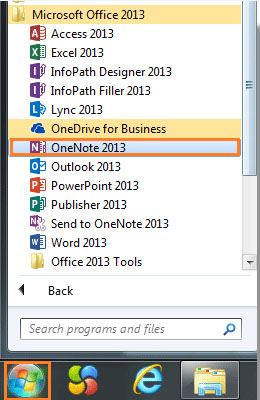
After this, Microsoft OneNote is now enabled. Close it and go back to Microsoft Office Outlook. Once Microsoft OneNote is activated, you should not see the message again. Now, to send an email from Microsoft Office Outlook to Microsoft OneNote, start Microsoft Office Outlook then select the email you wish to send to Microsoft OneNote.
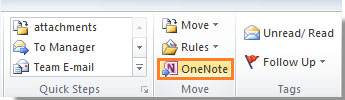
You can also select multiple emails and send them all at once to Microsoft OneNote. Once you’ve selected the email, under “Home” tab, in the “Move” group, click “OneNote.”
In the “Select Location in OneNote” dialog, select one Notebook to save the email then click “OK.”
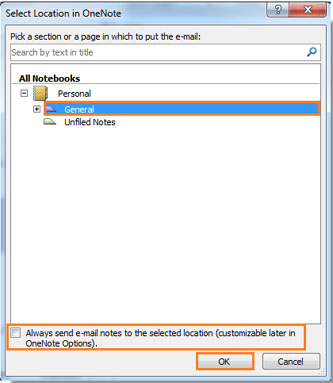
Microsoft OneNote should then start automatically which now contains the email you sent.
Comments
0 comments
Please sign in to leave a comment.