
The lifecycle of the automated Subscription Renewal Process follows.
Subscription Renewal Record
- Subscription renewal record is created when the Order is marked as shipped
- The Status is set to New
- The Subscription renewal date is set appropriately based on the terms of the order.
- If any add-on orders are processed prior to the renewal date, the lines from the add-on order will be added to the active Subscription record
- The Subscription renewal rate is based either on the current default renewal rate, or a renewal rate specified in the contract.
Opportunity Record
- As the Subscription Renewal Date approaches, at the specified number of days prior to the Subscription renewal date, the Renewal Opportunity is created, including the combined lines items from the subscription renewal record
- The Subscription record should be verified for accuracy before the date that the Opportunity is generated.
- The status is set to "Targeted", and Stage Status set to "In Progress"
- The opportunity can be checked for accuracy at this time. Any changes to the increase amount should be made on the Subscription renewal record, which will automatically flow to the opportunity
- If the customer will not renew, set the Status to the appropriate value, and enter the reason in the Win/Loss Notes field
Quote Record
- At the specified number of days prior to the Subscription renewal date, the Quote record is created, including the line items from the Opportunity.
- Status is set to "Draft"
- Contact Name is set from the Contact on the Opportunity
Quote PDF Record
- A Quote PDF is also generated at this time. This is the document which will be sent to the customer.
- Any changes required at this stage, should be made either on the Subscription record, or the Opportunity
- A new quote should then be manually generated to be sent to the customer
- The Quote PDF is emailed to the customer during the evening of the day it is created.
Invoice Record
- If the Quote is not processed by the customer within 30 days of the renewal date, then the invoice is is automatically sent to the customer
- The Opportunity Status is set to Closed Won
- The Order record is automatically created
- The Business Operations team processes and Ships the Order
- The Order is then transferred to Netsuite and the Invoice is sent to the customer
Manual Processing
- To Manually the process on demand for a single customer:
Create the Opportunity from the Subscription Record
- Go to the Subscription record and find the following fields near the top in the Subscription Details section

-
- "Create Opportunity" - When set to True (checked) this will generate the Opportunity record
- "Opportunity Processed" - When set to True, this indicates that the Opportunity record has already been created. This will stop any future automation from trying to create a new Opportunity
- "Processing Status" - When creating a new Opportunity, the status will be written in this field.
- Check the Create Opportunity box, and click Save
- The fields should now look similar to this
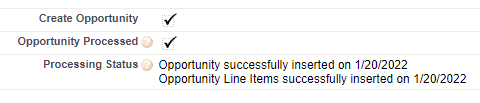
- Scroll down on the Subscription record to the Opportunities section, and you should see the link to the Opportunity which was just created
Create the Quote from the Opportunity Record
- Go to the Opportunity Record and find the following fields near the top in the Opportunity Detail section

-
- "Create Quote" - When set to True (checked) this will generate the Quote record
- "Quote Processed" - When set to True, this indicates that the Quote record has already been created. This will stop any future automation from trying to create a new Quote.
- "Processing Status" - When creating a new Quote, the status will be written in this field.
- Check the Create Quote box, and click Save
- The fields should now look similar to this
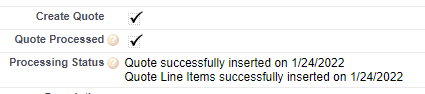
- Scroll down on the Opportunity record to the Quotes section, and you should see the link to the Quote which was just created
Create the Quote PDF from the Quote Record
- Go to the Quote Record and find the following fields near the top in the Quote Detail section

-
- "Create Quote PDF" - When set to True (checked) this will generate the Quote PDF record
- "Quote PDF Created" - When set to True, this indicates that the Quote PDF has already been created. This will stop any future automation from trying to create a new Quote. PDF
- Check the Create Quote PDF box, and click Save
- The fields should now look similar to this

- Scroll down on the Quote record to the Quote PDF's section, and you should see the link to the Quote PDF which was just created. Note: You may need to refresh the page once or twice before you see the Quote PDF record. This is by design of the way Salesforce creates PDF files.
Send the Quote PDF file to the customer via Email
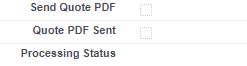
- Go to the Quote Record and find the following fields near the top in the Quote Detail section (On the left Side)
-
- "Send Quote PDF" - When set to True (checked) this will create an email message and send it to the customer.
- The email is sent to the Contact listed in the "Contact Name" field on the Quote record
- "Quote PDF Sent" - When set to True, this indicates that the Quote PDF has already been emailed. This will stop any future automation from trying to email a new Quote. PDF
- "Processing Status" - When emailing a Quote PDF to the customer, the status will be written in this field.
- "Send Quote PDF" - When set to True (checked) this will create an email message and send it to the customer.

- Scroll down on the Quote record to the Activity History section, and you should see the link to the Email containing the Quote PDF which was just emailed to the customer. Note: You may need to refresh the page once or twice before you see the record. This is by design of the way Salesforce sending email messages.
Comments
0 comments
Please sign in to leave a comment.